

Are you trying to flash or downgrade iOS and suddenly seeing the “Unable to request SHSH” error in 3uTools or iTunes? This message usually appears when the tool can’t verify your device with Apple’s server, so the restore or downgrade process stops. It can feel confusing and stressful—especially if you’re not sure what SHSH blobs or SHSH host mean.
Don’t worry—this guide explains the issue in simple terms and shows you clear, step‑by‑step fixes for the “Unable to Request SHSH” error so you can restore or downgrade your iPhone safely.
Part 1: What is SHSH and how it works in 3uTools
SHSH (Signature Hash) is a special verification file created by Apple. It acts like a digital permission slip that tells Apple’s servers whether your device is allowed to install or restore a specific iOS version. Without valid SHSH approval, tools like 3uTools or iTunes cannot complete the restore or downgrade.
You can learn more about SHSH and Apple’s signing process from iOS‑jailbreak and ecosystem‑explanation guides, which walk through how Apple’s server‑side checks work.
What can you do with SHSH?
SHSH is mainly used to:
-
Restore, upgrade, or downgrade iOS
-
Install unsigned or older firmware (if you have saved SHSH blobs in advance)
When an iOS version is still signed by Apple, SHSH helps confirm that the firmware is valid for your device. That’s why SHSH host is so important when using 3uTools “Pro Flash”.
How to download SHSH with 3uTools
To download SHSH blobs in 3uTools:
-
Connect your iPhone to the computer and open 3uTools.
-
Go to Flash & JB → Pro Flash.
-
Select the firmware you want and click “Download SHSH”.
If Apple is still signing that iOS version, 3uTools can download SHSH automatically. If not, you’ll see “Unable to request SHSH” or similar errors.
Part 2: Why “Unable to request SHSH” happens
This error means 3uTools failed to get SHSH permission from Apple’s servers. Common reasons include:
-
Apple stopped signing the iOS version
Apple only allows installation of currently signed iOS versions. If the version you’re trying to flash is no longer signed, the SHSH request will fail. You can check iOS signing status on ipsw.me or similar tools that show what firmware Apple still authorizes. -
Network or server issues
A weak internet connection, VPN, firewall, or proxy can block communication with Apple’s servers. Sometimes Apple’s servers are just busy or temporarily unavailable. -
Outdated 3uTools version
Older versions of 3uTools may have bugs or compatibility issues that prevent SHSH requests. Updating the app often fixes server‑communication problems. -
Wrong firmware selected
If the IPSW doesn’t match your iPhone model or uses an unsupported version, SHSH verification will fail. Always double‑check the model and iOS version before flashing.
Part 3: How to fix “Unable to Request SHSH” error
If 3uTools shows “Unable to request SHSH” while you’re trying to downgrade iOS, try these steps first.
1. Try restoring with iTunes/Finder
Sometimes iTunes or Finder (on macOS Catalina+) can still restore your iPhone even when 3uTools fails. This method bypasses SHSH and often fixes deeper firmware issues.
Steps:
-
Connect your iPhone to the computer.
-
Open iTunes (Windows) or Finder (macOS).
-
Wait for your device to appear, then click “Restore iPhone” and confirm.
-
After the restore, reopen 3uTools and try requesting SHSH again.
You can find Apple’s official restore‑guide pages on the Apple Support site, which explain the standard restore process.
2. Check and fix your internet connection
A stable internet connection is essential for SHSH verification. To improve it:
-
Restart your router or switch to a different network.
-
Turn off VPNs, firewalls, or proxies that may block Apple’s servers.
-
Use a wired Ethernet connection if possible.
-
Test your internet speed to ensure it’s stable.
If DNS problems are suspected, you can switch to public DNS services like Google DNS or Cloudflare, which are often recommended for smoother Apple‑server access.
3. Update 3uTools
Using an updated version of 3uTools can fix many SHSH‑related bugs.
How to update:
-
Open 3uTools.
-
Click the Menu (three lines) in the top‑left corner.
-
Choose “Check for Updates”.
-
Download and install the latest version, then try again.
Reputable tools keep patching compatibility with newer iOS and Apple‑server changes.
4. Confirm iOS is still signed
You can only request SHSH for current Apple‑signed iOS versions. If the version you’re trying to flash is no longer signed, the “Unable to request SHSH” error will persist.
Use ipsw.me to check:
-
Pick your iPhone model.
-
Look for the iOS version you want.
-
A green check = currently signed.
-
A red cross = no longer signed.
If the version is not signed, 3uTools cannot proceed. You must either:
-
Choose a currently signed iOS version, or
-
Use a specialized tool that bypasses SHSH (see Part 4).
Articles explaining “This firmware is not signed” also discuss how Apple controls downgrade paths on Apple‑support and repair‑tool sites.
Part 4: Best way to downgrade iOS (without SHSH headaches)
If you’re tired of “Unable to request SHSH” errors, you can use a smart recovery‑and‑downgrade tool that handles Apple’s verification automatically.
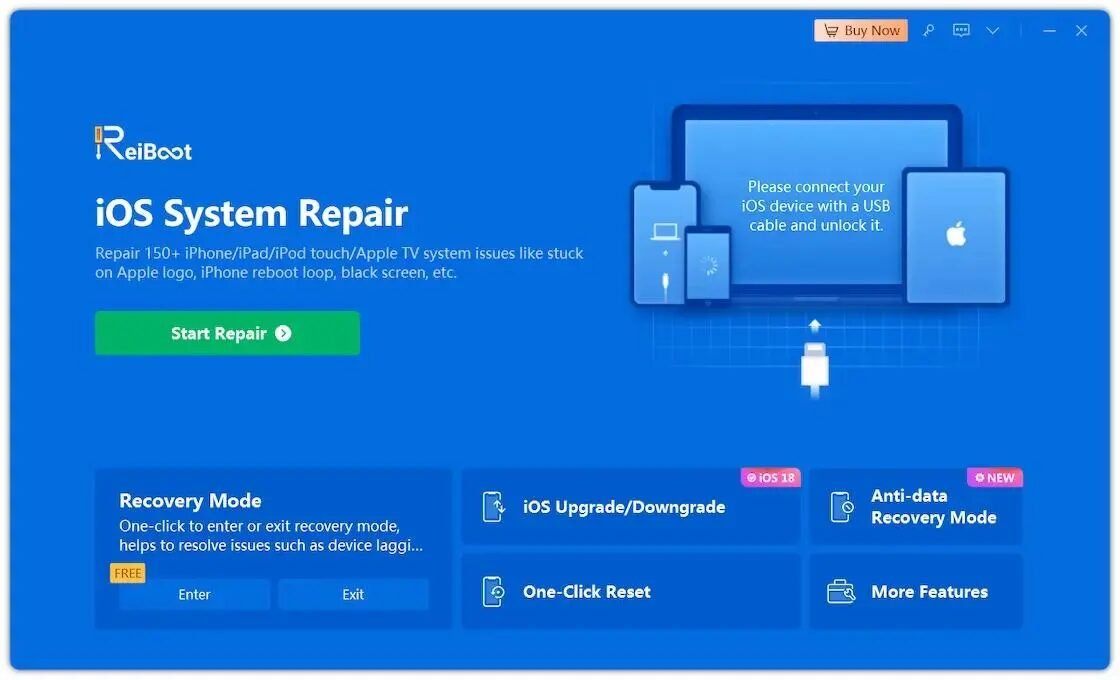
Tenorshare ReiBoot is one of the most popular tools for easily downgrading or restoring iOS without dealing with SHSH blobs or manual IPSW flashing. It’s designed for everyday users who want a smooth, safe iOS switch.
Why choose Tenorshare ReiBoot?
-
No SHSH management – ReiBoot automatically verifies firmware with Apple’s servers.
-
Clean, beginner‑friendly UI – Easy‑to‑use buttons and simple workflows.
-
High success rate – Known for stable downgrades and fewer errors.
-
Extra repair features – Can also fix stuck updates, boot loops, and frozen screens.
You can see detailed use‑cases and upgrade‑downgrade walkthroughs in Tenorshare’s ReiBoot iOS guide.
How to downgrade iOS with ReiBoot (step by step)
Follow these steps to downgrade iOS 18 or iOS 26 without SHSH errors:
Step 1: Install ReiBoot and connect iPhone
-
Download and install Tenorshare ReiBoot on your Windows PC or Mac.
-
Connect iPhone to the computer and let ReiBoot detect it.
-
Click “iOS Upgrade/Downgrade” on the main interface.
Step 2: Choose the downgrade option
-
On the next screen, select “Downgrade”.
-
Confirm that you want to install an earlier iOS version.
Step 3: Download the correct firmware
ReiBoot will detect your iPhone model and iOS and display compatible firmware.
-
Pick the iOS version you want.
-
Click “Download” to fetch the firmware.
Step 4: Start the downgrade
-
When the firmware is ready, click “Initiate Downgrade”.
-
ReiBoot will install the selected iOS version while managing the process securely.
Step 5: Finish the process
-
When the downgrade finishes, click “Done”.
-
Your iPhone will reboot and run the new iOS version.
This method avoids the “Unable to request SHSH” and “cannot get SHSH from the server” errors, making ReiBoot a stress‑free option for switching iOS versions.
Part 5: FAQs about the SHSH error
Q1: What if iOS 18.2.1 freezes at 9% with a SHSH error?
If the update hangs at 9% due to a SHSH‑related error:
-
Check your internet connection and restart your iPhone.
-
Try the update again.
-
If the error persists, use ReiBoot to safely complete the update or downgrade without manual SHSH steps.
Q2: I have the latest 3uTools but still get “SHSH” errors. Can I upgrade iPhone 8 Plus from iOS 12 to iOS 16?
Even with the latest 3uTools, some versions may no longer be signed by Apple, causing SHSH failures. In that case, ReiBoot is safer: it can upgrade directly to iOS 16 without SHSH verification.
Q3: Can I downgrade from iOS 26 to iOS 18 on iPhone 13 Pro?
No—Apple usually does not allow downgrading to older major versions once they stop signing them. Recent announcements from MacRumors and Apple‑news sites confirm that Apple has stopped signing iOS 18.6.2 and earlier versions, making such downgrades impossible unless you have saved SHSH blobs in advance.
Conclusion
The “Unable to request SHSH” error appears when 3uTools or iTunes can’t get permission from Apple’s servers to install or restore a specific iOS version. This usually happens because:
-
Apple stopped signing that iOS.
-
Your internet connection is unstable.
-
Your 3uTools app is outdated.
-
The firmware doesn’t match your device.
To fix it, you can:
-
Use iTunes/Finder to restore.
-
Check and improve your network.
-
Update 3uTools.
-
Verify the iOS version is still signed using ipsw.me.
For a smoother, safer alternative, use Tenorshare ReiBoot to downgrade or restore iOS without worrying about SHSH blobs or “Unable to request SHSH” errors.